
Legal payment processing
Simple law firm payment processing
Checks consume staff time, slow down cash flow, and create reconciliation headaches that cost real money.
Tabs3 Pay gives law firms a simple, secure, and client-friendly way to get paid online, fully integrated with Tabs3 Billing and Financials in Tabs3 Cloud.
Loading form...
Why Law Firms Choose Tabs3 Pay

Fast Approval
Most firms get approved the same day, so you can start accepting payments quickly without a long setup process.

Hassle-Free Onboarding
Onboarding happens right inside Tabs3, with no lengthy applications or separate portals to manage. Your team stays focused on client work, not payment logistics.

Honest, Transparent Pricing
Get competitive, transparent rates and tools that make it easy to understand and compare your processing costs and savings.
Tabs3 supports surcharging so your firm can confidently offset card fees without compromising client experience.

Configure how and when surcharges apply.
Keep surcharges visible and compliant for clients.
Protect the margins you’ve worked hard to build.
Experience the Full Benefit of Client Convenience
Online payments strengthen the entire billing cycle. Firms see better on-time payments, fewer write-offs, and significantly less staff time spent chasing or correcting invoices.
- Accelerate payment receipt
- Eliminate manual errors
- Minimize write-offs
- Streamline the collections process
- Reduce time spent on past-due collections
- Ensure secure, PCI compliant transactions
A complete payment solution, built into Tabs3
Tabs3 Pay is fully integrated with Tabs3 Billing and Trust Accounting, so payments, reconciliation, and compliance all work together automatically.

Faster payments with less effort
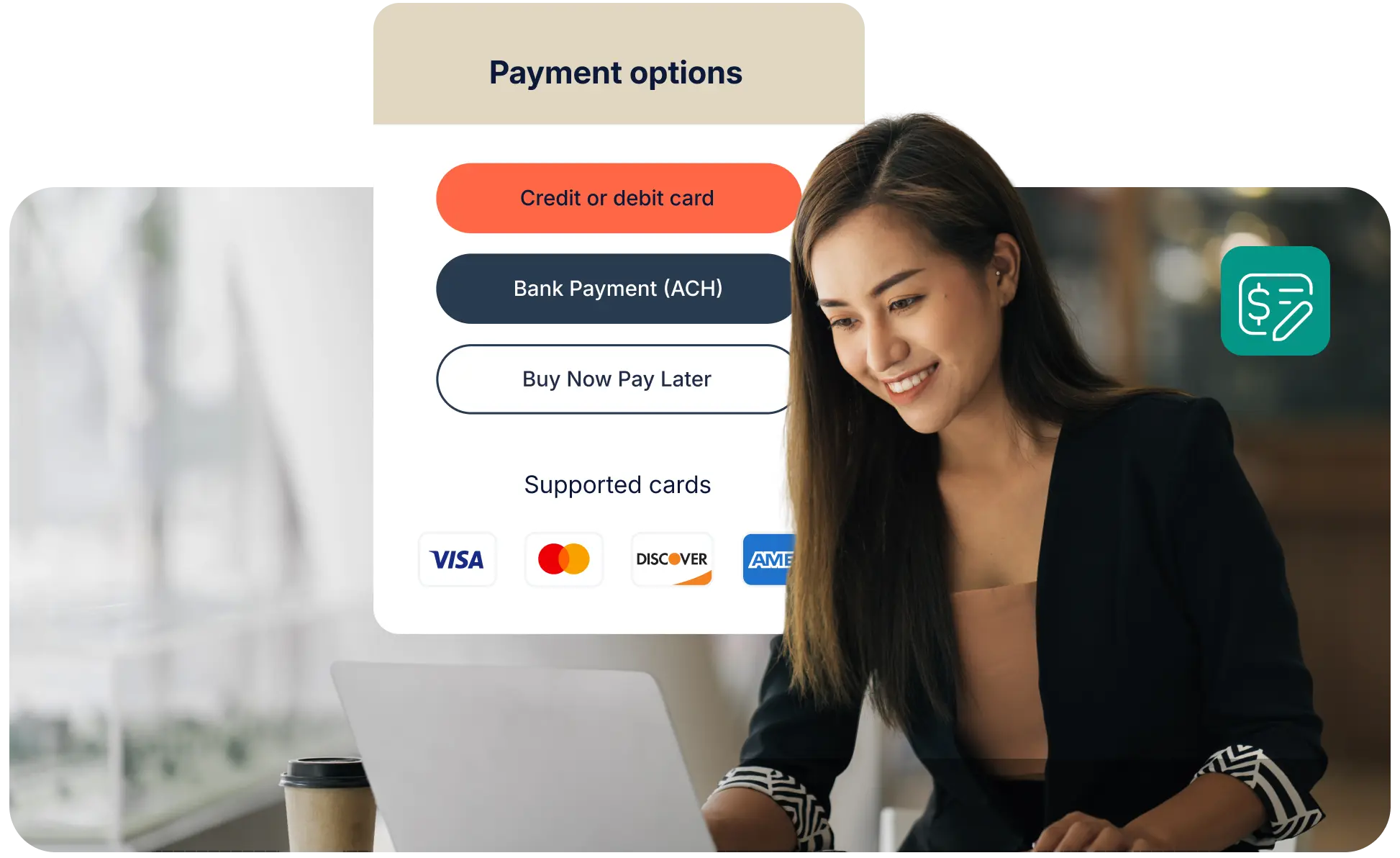
Clients pay online with credit cards, ACH, digital wallets, and Buy Now, Pay Later, while your team spends less time chasing checks. Get paid faster and forget the follow-ups with Autopay and recurring billing that runs itself.

Integrated with Tabs3 Billing and Trust Accounting
Payments, surcharges, and trust deposits flow directly into the systems you already use, reducing manual work and errors.

Secure, PCI-compliant processing
Protect your firm and your clients with compliant, encrypted payment handling designed for legal environments.

Flexible payment options
Support one-time, scheduled, and recurring payments that fit your clients’ needs and your firm’s cash flow goals.
What our users have to say
Frequently asked questions
Accepting electronic payments is more than just convenient for your clients. Sign up in minutes to experience these benefits:
- Ability to send payment links with email statements
- Faster payments from clients
- Designed for trust accounts – separate earned and unearned fees
- Fewer collection calls, and the ability to take payments over the phone
- Fewer write offs
- Built into the Tabs3 Software to save time and reduce mistakes
- Simple pricing
- Low processing fees
For those on Version 2026 (Build 26.1.20) or later, you can sign up and enable Tabs3 Pay in Tabs3 Billing or Trust. In the Quick Launch, search for and select “Tabs3 Pay Web Portal,” then click the Let’s Get Started button. If you have questions about setting up a Tabs3 Pay account, you can contact Tabs3 Support at 402-419-2210.
Tabs3 Pay allows you to accept Visa®, MasterCard®, Discover®, American Express®, Diner’s Club®, and JCB credit cards as well as Visa and MasterCard debit cards.
Clients have the option of logging in via their bank (Plaid or something similar) or manually entering their bank details. We recommend clients use bank login to prevent them from entering incorrect routing or account numbers.
At this time Tabs3 Pay is limited to firms within the 50 US states. Tabs3 Pay is not available to firms outside of the United States, or in US territories such as Puerto Rico and the Virgin Islands, at this time.
Surcharging is a service offered by Tabs3 Pay that allows firms to take advantage of the convenience of credit card processing while minimizing the expense of processing fees. While processing fees are normally paid by the firm, with surcharging, credit card fees are paid by the cardholder instead. Only credit card transactions (Visa, MasterCard, American Express, Discover, etc.) are subject to surcharging. Processing fees for debit card and ACH (eCheck) transactions continue to be paid by the firm.
If you have not yet signed up for Tabs3 Pay, simply update to Version 2026 (Build 26.1.20 or later) and sign up for Tabs3 Pay. The option of enabling surcharging will be included in the signup process. If you are already using Tabs3 Pay, contact Tabs3 Support at 402-419-2210 for assistance with enabling surcharging on your existing account.
Yes, the surcharge is included as a separate line item on receipts and when paying via a Tabs3 Pay payment link. Regulations require that surcharges be displayed separately.
Here's what to expect once a payment is processed:
Card payments
- Processed by 7:30 PM ET: deposited the next business day
- Processed after 7:30 PM ET: deposited the following business day
Bank debits (ACH)
- Deposited the next business day
Your first payout
- Your very first payout may take about a week. This is normal, it's just your account getting fully established in our system. After that, you'll be on the standard schedule above.
Fees will be withdrawn separately at the end of the month. For example, if your firm processes $1,000 today, you will see a deposit for $1,000. At the end of the month, you will see a withdrawal for all of the fees for transactions processed in the past month. This is commonly referred to as gross settlement.
Tabs3 Software supports trust credit card processing and ensures that deposits can go into Trust while fees are only taken from the Operating account.
Once surcharging is enabled for your firm, it applies to all credit card transactions.
All surcharging is handled by Tabs3 Pay directly. When you enter payments and deposits, you will continue to enter the amount to be paid or deposited in Tabs3 Billing or Trust. Tabs3 Pay will add the surcharge to that amount automatically and include it on the receipt. Only the original pre-surcharge payment or deposit amount will be used by the software, including with GL journal entries.
Yes! Simply schedule a Tabs3 Pay demo to find a date and time for your demonstration.
Yes, when you use the Apply Payment Methods to Multiple Matters feature with a Tabs3 Pay payment method selected, the payment will be successfully processed by Tabs3 Pay.
Yes. Tabs3 Software can assign different accounts to timekeepers, locations (each branch office can have a separate account), and account types (Tabs3 Billing or Trust), or any combination thereof. Tabs3 Software also supports using multiple Tabs3 Pay accounts.
Before allowing a client to make a client funds deposit with a credit card, you should talk to your state bar about rules for accepting credit card payments for retainers because it differs by state. Like credit card payments, accepting client funds deposits via credit card is possible with a Tabs3 Pay account. Tabs3 Billing allows credit card client funds deposits to be authorized. Fees will be deducted from the operating account in one lump monthly sum to make it easier to reconcile client deposits.
Yes. As long as an email address is specified for a Tabs3 Pay payment method, a receipt will be sent to that address any time the payment method is used. Removing the email address from the payment method will prevent receipts from being emailed. In order to remove the email address from a payment method, you will need to delete the payment method and then add it back without an email address specified.
In Version 2022 (Build 22.2.10) and later, the Schedule Payment window can be used to create scheduled and recuring payments directly from Tabs3 Billing and Trust. These payments can then be imported using the Tabs3 Billing and Trust tabs of the Import Online Payments window. For more information regarding the Schedule Payment feature, see KB Article R11915, “Scheduling Payments Using Tabs3 Pay.”
Yes! There are multiple ways clients can pay their bills online via Tabs3 Pay.
- The Tabs3 Payment Link feature allows clients to pay their bill safely and securely via a link included with their emailed statement. Once a payment is made, it can then be imported into Tabs3 Billing. See KB Article R11767, “Using the Tabs3 Payment Link,” for more information.
- The Client Portal is available for firms running Tabs3 Billing Platinum edition Version 2023 and later, and allows clients to view and pay their bills online via Tabs3 Pay. See KB Article R11919, “Configuring the Client Portal,” for more information.
- The Tabs3 Pay Portal allows you to create hyperlinks to add to your firm’s website to allow clients to pay their bills directly. See the Generating Payment Links section for more information.
- Tabs3 Websites can include a Tabs3 Pay payment option as part of your firm’s website. See R11955, “Tabs3 Websites,” for more information.
Autopay lets your firm set up recurring payments for clients on a schedule — weekly, monthly, or custom — so invoices get paid automatically without any follow-up from your team.
By putting payments on a recurring schedule, Autopay shortens the billing cycle and reduces the gap between when work is done and when payment arrives. Fewer invoices sit unpaid, and your team spends less time on collections.
Buy Now, Pay Later lets clients split a larger bill into manageable installments, while your firm is paid the full amount immediately. Once your firm is paid, the provider takes on all responsibility for collecting the installment payments, so your firm carries zero risk of client default.
Yes, clients can pay using Apple Pay or Google Pay in addition to credit cards and ACH, giving them a fast, familiar way to pay from their phone.
Yes. The Tabs3 Pay Portal lets you view and manage disputes alongside your transaction and payout details, so you can respond without leaving your existing workflow.
Yes. Firm admins receive real-time account status notifications by email and a dashboard banner, so you'll know right away if anything needs attention.